Lesson 3: Colors and backgrounds

Ak Patel
---
In this lesson you will learn how to apply colors and background
colors to your websites. We will also look at advanced methods to
position and control background images. The following CSS properties
will be explained:
For example, imagine that we want all headlines in a document to be dark red. The headlines are all marked with the HTML element
Colors can be entered as hexadecimal values as in the example above
(#ff0000), or you can use the names of the colors ("red") or rgb-values
(rgb(255,0,0)).
The element
You can also apply background colors to other elements including headlines and text. In the example below, different background colors are applied to
Notice that we applied two properties to
As an example of a background image, we use the butterfly below. You can download the image so you can use it on your own computer (right click the image and choose "save image as"), or you can use another image as you see fit.

To insert the image of the butterfly as a background image for a web page, simply apply the background-image property to
NB: Notice how we specified the location of the image as url("butterfly.gif").
This means that the image is located in the same folder as the style
sheet. You can also refer to images in other folders using url("../images/butterfly.gif") or even on the Internet indicating the full address of the file: url("http://www.html.net/butterfly.gif").
The table below outlines the four different values for
For example, to avoid repetition of a background image the code should look like this:
A fixed background image will not move with the text when a reader is scrolling the page, whereas an unlocked background image will scroll along with the text of the web page.
The table below outlines the two different values for
For example, the code below will fix the background image.
There are numerous ways to set the values of
The coordinates can be indicated as percentages of the browser window, fixed units (pixels, centimetres, etc.) or you can use the words top, bottom, center, left and right. The model below illustrates the system:
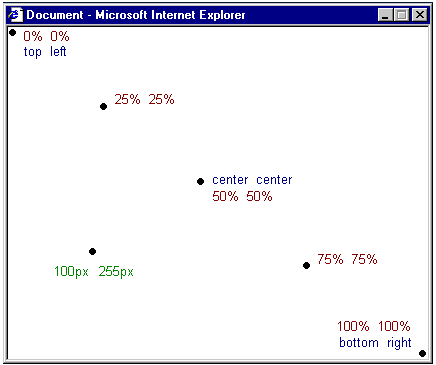
The code example below positions the background image in the bottom right corner:
With
For example, look at these five lines:
Using
The list of order is as follows:
If a property is left out, it will automatically be set to its default value. For example, if
These two properties that are not specified would merely be set to their default values which as you know are scroll and top left.
- color
- background-color
- background-image
- background-repeat
- background-attachment
- background-position
- background
Foreground color: the 'color' property
Thecolor property describes the foreground color of an element.For example, imagine that we want all headlines in a document to be dark red. The headlines are all marked with the HTML element
<h1>. The code below sets the color of <h1> elements to red.
 h1 {
  color: #ff0000;
 }
The 'background-color' property
Thebackground-color property describes the background color of elements.The element
<body> contains all the content of an
HTML document. Thus, to change the background color of an entire page,
the background-color property should be applied to the <body> element. You can also apply background colors to other elements including headlines and text. In the example below, different background colors are applied to
<body> and <h1> elements.
 body {
  background-color: #FFCC66;
 }

 h1 {
  color: #990000;
  background-color: #FC9804;
 }
<h1> by dividing them by a semicolon.Background images [background-image]
The CSS propertybackground-image is used to insert a background image.As an example of a background image, we use the butterfly below. You can download the image so you can use it on your own computer (right click the image and choose "save image as"), or you can use another image as you see fit.
To insert the image of the butterfly as a background image for a web page, simply apply the background-image property to
<body> and specify the location of the image.
 body {
  background-color: #FFCC66;
  background-image: url("butterfly.gif");
 }

 h1 {
  color: #990000;
  background-color: #FC9804;
 }
Repeat background image [background-repeat]
In the example above, did you notice that by default the butterfly was repeated both horizontally and vertically to cover the entire screen? The propertybackground-repeat controls this behaviour.The table below outlines the four different values for
background-repeat.For example, to avoid repetition of a background image the code should look like this:
 body {
  background-color: #FFCC66;
  background-image: url("butterfly.gif");
  background-repeat: no-repeat;
 }

 h1 {
  color: #990000;
  background-color: #FC9804;
 }
Lock background image [background-attachment]
The propertybackground-attachment specifies whether a background picture is fixed or scrolls along with the containing element.A fixed background image will not move with the text when a reader is scrolling the page, whereas an unlocked background image will scroll along with the text of the web page.
The table below outlines the two different values for
background-attachment. Click on the examples to see the difference between scroll and fixed.For example, the code below will fix the background image.
 body {
  background-color: #FFCC66;
  background-image: url("butterfly.gif");
  background-repeat: no-repeat;
  background-attachment: fixed;
 }

 h1 {
  color: #990000;
  background-color: #FC9804;
 }
Place background image [background-position]
By default, a background image will be positioned in the top left corner of the screen. The propertybackground-position allows you to change this default and position the background image anywhere you like on the screen.There are numerous ways to set the values of
background-position.
However, all of them are formatted as a set of coordinates. For
example, the value '100px 200px' positions the background image 100px
from the left side and 200px from the top of the browser window. The coordinates can be indicated as percentages of the browser window, fixed units (pixels, centimetres, etc.) or you can use the words top, bottom, center, left and right. The model below illustrates the system:
The code example below positions the background image in the bottom right corner:
 body {
  background-color: #FFCC66;
  background-image: url("butterfly.gif");
  background-repeat: no-repeat;
  background-attachment: fixed;
  background-position: right bottom;
 }

 h1 {
  color: #990000;
  background-color: #FC9804;
 }
Compiling [background]
The propertybackground is a short hand for all the background properties listed in this lesson.With
background you can compress several properties and thereby write your style sheet in a shorter way which makes it easier to read. For example, look at these five lines:
 background-color: #FFCC66;
 background-image: url("butterfly.gif");
 background-repeat: no-repeat;
 background-attachment: fixed;
 background-position: right bottom;
background the same result can be achieved in just one line of code:
background: #FFCC66 url("butterfly.gif") no-repeat fixed right bottom;
[background-color] | [background-image] | [background-repeat] | [background-attachment] | [background-position]If a property is left out, it will automatically be set to its default value. For example, if
background-attachment and background-position are taken out of the example:
background: #FFCC66 url("butterfly.gif") no-repeat;
These two properties that are not specified would merely be set to their default values which as you know are scroll and top left.